Want Your iOS App to Show Live Updates on the Lock Screen? Here’s the Secret Sauce
Want to show real-time updates on the iPhone Lock Screen? This is how the pros do it.
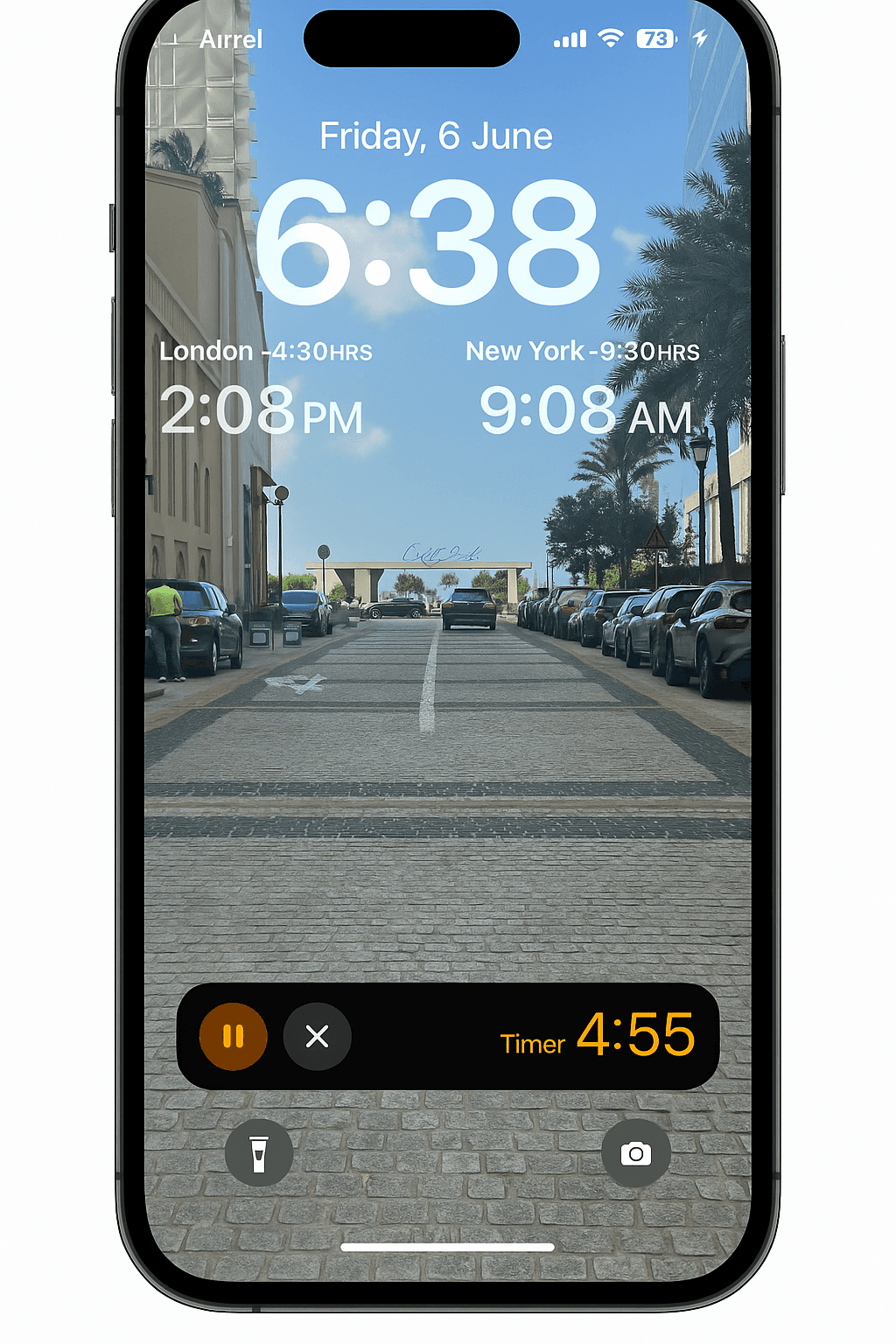

👋 1\. Introduction
You know that oddly satisfying moment when your iPhone says “Your cab is 3 minutes away” and you didn’t even open the app? Or when your pizza’s journey from oven to doorstep plays out like a live sports broadcast on your lock screen?
That, my friend, is the magic of Live Activities. It’s a slick feature Apple added in iOS 16.1. It lets your app talk to your user in real time without shouting through notifications or begging to be opened.
Think of it as giving your app a tiny, persistent billboard right on the Lock Screen. And if you’re on a newer iPhone, it might even pop up in the Dynamic Island 🏝️. The best part? You don’t need to be Uber or Zomato to use it. If your app has anything that changes in real time, like a countdown, a delivery status, or a workout in progress, Live Activities can make that experience feel way more intuitive.
In this article, I’ll break down:
- What Live Activities actually are
- Why they matter and when to use them
- Where they don’t fit
- How to prepare your app to support them
If you’re ready to level up your lock screen game, let’s get into it. 🦸♂️
📱 2. What Are Live Activities?
Imagine a widget and a notification had a baby, and that baby decided it was too cool to live inside the app. That’s basically what a Live Activity is.
It’s a real-time UI component that sits on the Lock Screen (and on the Dynamic Island if you’re using a fancy iPhone). Once it’s triggered, it can stay active for hours, quietly updating your user with the latest info — whether it’s a countdown, a ride arrival, or your user’s fourth attempt at a Pomodoro timer.
Here’s what makes it special:
- It’s persistent, meaning it stays on screen as long as it’s active.
- It updates in real time, with no need for manual refreshes or repeat notifications.
- It lives outside the app, giving users live info without making them open anything.
- It feels native and smooth, like something Apple designed (because… well, they did).
Under the hood, it uses ActivityKit to manage the logic and WidgetKit with SwiftUI to render the UI. The view is basically a widget, but with its own twist. You define the structure with something called ActivityAttributes, and update it locally or remotely.
And the best part? You don’t need to mess with push notifications to get started. You can build a simple local Live Activity with just a few lines of code and a sprinkle of SwiftUI magic.
🎯 3. Why Should You Care?
Let’s be real. Most users don’t open apps as often as we’d like. But they do check their lock screens obsessively. That’s where Live Activities come in. They keep your app front and center without being clingy or annoying.
Here’s why you should seriously consider adding one:
- It feels native. Live Activities blend in with iOS so well, your app looks like it’s part of the operating system.
- Better engagement. Users are more likely to stick around when they can glance at progress instead of digging through your app.
- It’s fun to build. It’s one of those rare features where SwiftUI actually behaves, and Apple gives you clear guidelines for once.
- You stand out. Not every app uses Live Activities yet. Adding one can make your product feel modern and thoughtful.
And if that’s not enough, consider this: your user’s pizza delivery app is doing it. Do you really want to be less helpful than pizza?
🧱 4. The Building Blocks
To get a Live Activity working, you’ll need to combine a few Apple frameworks and concepts. Don’t worry, it sounds scarier than it is. Here’s what’s involved:
- ActivityKit: This is the behind-the-scenes manager. It lets your app start, update, and end a Live Activity programmatically.
- WidgetKit: This handles the UI. You’ll use it to design what your Live Activity looks like on the Lock Screen and, if supported, in the Dynamic Island.
- ActivityAttributes: A Swift struct that defines the kind of data your Live Activity will show. Think of it as the blueprint.
- ContentState: The actual live data being displayed, which gets updated over time.
- SwiftUI View: The visual layout of your Live Activity. This is what users will see.
- Push Notifications (optional): If you want to update the Live Activity remotely, this is the way to do it. Very useful for real-time delivery tracking, score updates, and so on.
Here’s the good news. You don’t need to set up everything at once. You can build a simple Live Activity that updates locally, then add remote updates later when you’re ready.
Also, your app doesn’t have to be fully SwiftUI. You only need SwiftUI for the Live Activity view. The rest of your app can stay in UIKit without any issues.
😬 5. Limitations That Will Save You a Debug-Induced Meltdown
Before you start dreaming of fully animated, multi-screen, interactive experiences on the Lock Screen… take a breath. Live Activities are powerful, but Apple definitely kept them on a leash.
Here are a few things you’ll want to know before you spend three hours wondering why something “just doesn’t show up”:
- Only one Live Activity per app (most of the time). You can’t have three things showing at once — Apple wants it simple.
- They expire automatically. A Live Activity will end after 8 hours by default, or 12 hours if you’re using remote updates.
- No buttons or inputs. You can show info, but you can’t make the user tap, swipe, or interact directly.
- Updates aren’t unlimited. There are rate limits, especially with push updates. Apple wants you to be thoughtful, not spammy.
- Design is constrained. You’re building with WidgetKit, so you’re working inside a pretty rigid layout system.
Also worth noting: if you try to stuff in too much content or send updates too frequently, iOS may just ignore your changes or kill the activity altogether. It’s not you. It’s the sandbox.
The trick is to keep it simple, focused, and predictable. You’re building a glanceable interface, not a mini app.
🧭 6. When Should You Use Live Activities?
Not every app needs a Live Activity. But if your app has any kind of real-time or progressing event, this is your moment to shine.
Here are some perfect use cases:
- Food delivery: Show the order status, estimated arrival time, or even the driver’s name.
- Ride hailing: Keep the user updated on the driver’s distance and arrival time.
- Workout tracking: Display a live timer or calories burned without making the user unlock their phone mid-squat.
- Countdowns: Perfect for events, Pomodoro timers, or goals with a ticking clock.
- Flight or train updates: Gate changes, delays, and live departure boards can show up while the user’s phone is locked.
Now, some use cases to avoid:
- Anything static that never changes. If the info doesn’t update, it’s just a boring widget.
- Promotional or marketing messages. Apple will definitely reject you for this.
- Constantly updating data with no real user value. If you’re just refreshing numbers every 10 seconds for no reason, that’s a quick way to get throttled.
A good rule of thumb: If it’s something users care about tracking in real time, and they’d rather not open your app to see it, then it’s a strong candidate.
🔚 7. What’s Coming Next?
Now that you’ve got a solid grip on what Live Activities are, how they work, and when to use them, it’s time to build something real.
In the next article, I’ll walk you through creating your first Live Activity. It’ll sit right on the Lock Screen, update in real time, and feel just as slick as the ones in your favorite delivery apps.
🎉 Enjoyed this article? Your support means the world to me!
💬 Drop a comment below! I love hearing about your experiences and answering questions
🎬 Subscribe on Youtube and become early subscribers of my channel: https://www.youtube.com/@swift-pal
💼 Let’s connect on LinkedIn for more professional insights: https://www.linkedin.com/in/karan-pal
Happy coding! 🚀
New articles, straight to your inbox.
No spam, no filler — just new writing on iOS, the web, and AI when it ships. Unsubscribe anytime.
Keep reading
Your CPU Has More Cores Than Your Job Can Use
Some work splits cleanly across hundreds of cores. Other work is a chain of steps where every new step has to wait for the last one to finish.
ReadYour Password Isn’t as Random as You Think
Crack-time calculators measure the size of a theoretical password space—not how people actually choose passwords or how attackers search them.
Read