The Extension Trick That Transforms Junior Code Into Senior-Level Architecture
How to organize Swift code like the pros — without the years of painful experience
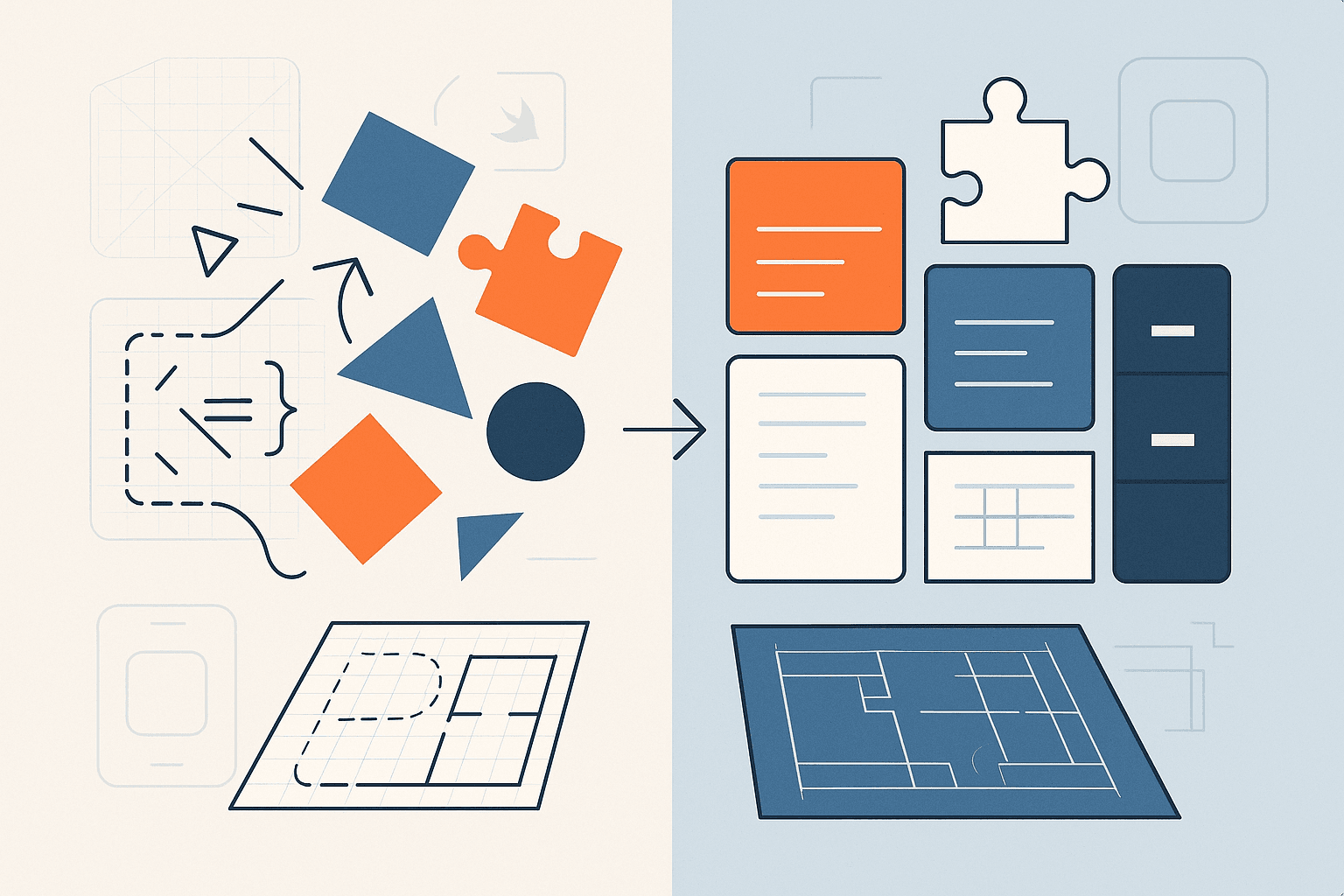

You know that feeling when you open a Swift file and… it’s just one massive wall of code? 500+ lines of methods, properties, and protocols all jumbled together like a digital yard sale. Yeah, we’ve all been there.
But here’s what separates the junior developers from the senior ones — and it’s not years of experience or some secret computer science degree. It’s how they organize their code. And the weapon of choice? Swift extensions.
Look, I’m not talking about those basic extensions where you add a single helper method. I’m talking about using extensions as an architectural pattern that makes your code so clean, so organized, that other developers will assume you’ve been coding for decades.
📺 Coming soon to Swift Pal: A complete video walkthrough of these extension patterns at _https://youtube.com/@swift-pal_
**Swift Pal** _👨💻 Welcome to Swift Pal - Your iOS Dev Companion! Whether you're just starting your journey with Swift and SwiftUI…_youtube.comhttps://youtube.com/@swift-pal
🎯 The Problem Every Developer Faces
Actually, let me back up here. You’ve probably seen code that looks like this disaster:
class UserProfileViewController: UIViewController {
    @IBOutlet weak var profileImageView: UIImageView!
    @IBOutlet weak var nameLabel: UILabel!
    @IBOutlet weak var emailLabel: UILabel!
    @IBOutlet weak var editButton: UIButton!
    @IBOutlet weak var tableView: UITableView!

    var user: User?
    var imagePickerController: UIImagePickerController!
    var isEditingMode = false
    private var keyboardHeight: CGFloat = 0

    override func viewDidLoad() {
        super.viewDidLoad()
        setupUI()
        loadUserData()
        configureImagePicker()
        setupGestureRecognizers()
        observeKeyboardNotifications()
        setupTableView()
    }

    func setupUI() {
        view.backgroundColor = .systemBackground
        navigationItem.title = "Profile"
        editButton.layer.cornerRadius = 8
        profileImageView.layer.cornerRadius = 50
        profileImageView.clipsToBounds = true
        // ... 15 more lines of UI setup
    }

    func loadUserData() {
        guard let userId = UserDefaults.standard.string(forKey: "userId") else { return }
        APIManager.shared.fetchUser(id: userId) { [weak self] result in
            DispatchQueue.main.async {
                switch result {
                case .success(let user):
                    self?.user = user
                    self?.updateUI()
                case .failure(let error):
                    self?.showAlert(message: error.localizedDescription)
                }
            }
        }
    }

    @IBAction func editButtonTapped(_ sender: UIButton) {
        isEditingMode.toggle()
        editButton.setTitle(isEditingMode ? "Save" : "Edit", for: .normal)
        tableView.setEditing(isEditingMode, animated: true)
    }

    @IBAction func profileImageTapped(_ sender: UITapGestureRecognizer) {
        present(imagePickerController, animated: true)
    }

    func imagePickerController(_ picker: UIImagePickerController, didFinishPickingMediaWithInfo info: [UIImagePickerController.InfoKey : Any]) {
        if let image = info[.originalImage] as? UIImage {
            profileImageView.image = image
            uploadProfileImage(image)
        }
        picker.dismiss(animated: true)
    }

    func tableView(_ tableView: UITableView, numberOfRowsInSection section: Int) -> Int {
        return ProfileRow.allCases.count
    }

    func tableView(_ tableView: UITableView, cellForRowAt indexPath: IndexPath) -> UITableViewCell {
        let cell = tableView.dequeueReusableCell(withIdentifier: "ProfileCell", for: indexPath)
        let row = ProfileRow.allCases[indexPath.row]
        cell.textLabel?.text = row.title
        cell.detailTextLabel?.text = getValueFor(row: row)
        return cell
    }

    @objc func keyboardWillShow(_ notification: Notification) {
        guard let keyboardFrame = notification.userInfo?[UIResponder.keyboardFrameEndUserInfoKey] as? CGRect else { return }
        keyboardHeight = keyboardFrame.height
        adjustViewForKeyboard()
    }

    @objc func keyboardWillHide(_ notification: Notification) {
        keyboardHeight = 0
        adjustViewForKeyboard()
    }

    private func validateUserInput() -> Bool {
        guard let name = nameLabel.text, !name.isEmpty else {
            showAlert(message: "Name cannot be empty")
            return false
        }
        // More validation logic...
        return true
    }

    private func showAlert(message: String) {
        let alert = UIAlertController(title: "Error", message: message, preferredStyle: .alert)
        alert.addAction(UIAlertAction(title: "OK", style: .default))
        present(alert, animated: true)
    }

    // ... and it just keeps going for another 200 lines
}
This is what I call “The Everything Class” — and honestly? Most developers write code like this. Even some senior ones (don’t tell them I said that).
The problem isn’t that the code doesn’t work. It probably works fine! But good luck finding anything when you need to debug it at 2 AM. Want to check how the table view is configured? Better start scrolling. Need to see the image picker logic? Hope you remember where you put it.
It’s like having a toolbox where all your tools are just… thrown in there. Sure, the hammer’s in there somewhere, but you’ll spend more time looking for it than actually fixing something.
🔧 The Extension Solution
Now here’s where it gets interesting. What if I told you we could take that exact same functionality and make it look like this instead:
class UserProfileViewController: UIViewController {
    @IBOutlet weak var profileImageView: UIImageView!
    @IBOutlet weak var nameLabel: UILabel!
    @IBOutlet weak var emailLabel: UILabel!
    @IBOutlet weak var editButton: UIButton!
    @IBOutlet weak var tableView: UITableView!

    var user: User?
    var imagePickerController: UIImagePickerController!
    var isEditingMode = false
    private var keyboardHeight: CGFloat = 0

    override func viewDidLoad() {
        super.viewDidLoad()
        setupUI()
        loadUserData()
        configureImagePicker()
        setupGestureRecognizers()
        observeKeyboardNotifications()
        setupTableView()
    }
}

// MARK: - UI Setup
extension UserProfileViewController {
    func setupUI() {
        view.backgroundColor = .systemBackground
        navigationItem.title = "Profile"
        editButton.layer.cornerRadius = 8
        profileImageView.layer.cornerRadius = 50
        profileImageView.clipsToBounds = true
        setupTableView()
    }

    func setupTableView() {
        tableView.delegate = self
        tableView.dataSource = self
        tableView.register(UITableViewCell.self, forCellReuseIdentifier: "ProfileCell")
    }

    func setupGestureRecognizers() {
        let tapGesture = UITapGestureRecognizer(target: self, action: #selector(profileImageTapped))
        profileImageView.addGestureRecognizer(tapGesture)
        profileImageView.isUserInteractionEnabled = true
    }
}

// MARK: - Data Loading
extension UserProfileViewController {
    func loadUserData() {
        guard let userId = UserDefaults.standard.string(forKey: "userId") else { return }
        APIManager.shared.fetchUser(id: userId) { [weak self] result in
            DispatchQueue.main.async {
                switch result {
                case .success(let user):
                    self?.user = user
                    self?.updateUI()
                case .failure(let error):
                    self?.showAlert(message: error.localizedDescription)
                }
            }
        }
    }

    private func updateUI() {
        guard let user = user else { return }
        nameLabel.text = user.name
        emailLabel.text = user.email
        // Load profile image if available
        if let imageUrl = user.profileImageUrl {
            loadImage(from: imageUrl)
        }
        tableView.reloadData()
    }
}

// MARK: - Actions
extension UserProfileViewController {
    @IBAction func editButtonTapped(_ sender: UIButton) {
        isEditingMode.toggle()
        editButton.setTitle(isEditingMode ? "Save" : "Edit", for: .normal)
        tableView.setEditing(isEditingMode, animated: true)

        if !isEditingMode {
            saveUserData()
        }
    }

    @objc func profileImageTapped(_ sender: UITapGestureRecognizer) {
        present(imagePickerController, animated: true)
    }

    private func saveUserData() {
        guard validateUserInput() else { return }
        // Save logic here
    }
}

// MARK: - UITableViewDataSource
extension UserProfileViewController: UITableViewDataSource {
    func tableView(_ tableView: UITableView, numberOfRowsInSection section: Int) -> Int {
        return ProfileRow.allCases.count
    }

    func tableView(_ tableView: UITableView, cellForRowAt indexPath: IndexPath) -> UITableViewCell {
        let cell = tableView.dequeueReusableCell(withIdentifier: "ProfileCell", for: indexPath)
        let row = ProfileRow.allCases[indexPath.row]
        cell.textLabel?.text = row.title
        cell.detailTextLabel?.text = getValueFor(row: row)
        return cell
    }
}

// MARK: - UITableViewDelegate
extension UserProfileViewController: UITableViewDelegate {
    func tableView(_ tableView: UITableView, didSelectRowAt indexPath: IndexPath) {
        tableView.deselectRow(at: indexPath, animated: true)
        let row = ProfileRow.allCases[indexPath.row]
        handleRowSelection(row: row)
    }
}

// MARK: - UIImagePickerControllerDelegate
extension UserProfileViewController: UIImagePickerControllerDelegate, UINavigationControllerDelegate {
    func configureImagePicker() {
        imagePickerController = UIImagePickerController()
        imagePickerController.delegate = self
        imagePickerController.sourceType = .photoLibrary
        imagePickerController.allowsEditing = true
    }

    func imagePickerController(_ picker: UIImagePickerController, didFinishPickingMediaWithInfo info: [UIImagePickerController.InfoKey : Any]) {
        if let image = info[.editedImage] as? UIImage ?? info[.originalImage] as? UIImage {
            profileImageView.image = image
            uploadProfileImage(image)
        }
        picker.dismiss(animated: true)
    }

    func imagePickerControllerDidCancel(_ picker: UIImagePickerController) {
        picker.dismiss(animated: true)
    }
}

// MARK: - Keyboard Handling
extension UserProfileViewController {
    func observeKeyboardNotifications() {
        NotificationCenter.default.addObserver(
            self,
            selector: #selector(keyboardWillShow),
            name: UIResponder.keyboardWillShowNotification,
            object: nil
        )
        NotificationCenter.default.addObserver(
            self,
            selector: #selector(keyboardWillHide),
            name: UIResponder.keyboardWillHideNotification,
            object: nil
        )
    }

    @objc func keyboardWillShow(_ notification: Notification) {
        guard let keyboardFrame = notification.userInfo?[UIResponder.keyboardFrameEndUserInfoKey] as? CGRect else { return }
        keyboardHeight = keyboardFrame.height
        adjustViewForKeyboard()
    }

    @objc func keyboardWillHide(_ notification: Notification) {
        keyboardHeight = 0
        adjustViewForKeyboard()
    }

    private func adjustViewForKeyboard() {
        let contentInset = UIEdgeInsets(top: 0, left: 0, bottom: keyboardHeight, right: 0)
        tableView.contentInset = contentInset
        tableView.scrollIndicatorInsets = contentInset
    }
}

// MARK: - Private Helpers
private extension UserProfileViewController {
    func validateUserInput() -> Bool {
        guard let name = nameLabel.text, !name.isEmpty else {
            showAlert(message: "Name cannot be empty")
            return false
        }

        guard let email = emailLabel.text, isValidEmail(email) else {
            showAlert(message: "Please enter a valid email address")
            return false
        }

        return true
    }

    func showAlert(message: String) {
        let alert = UIAlertController(title: "Error", message: message, preferredStyle: .alert)
        alert.addAction(UIAlertAction(title: "OK", style: .default))
        present(alert, animated: true)
    }

    func isValidEmail(_ email: String) -> Bool {
        let emailRegex = "[A-Z0-9a-z._%+-]+@[A-Za-z0-9.-]+\\.[A-Za-z]{2,64}"
        let emailPredicate = NSPredicate(format:"SELF MATCHES %@", emailRegex)
        return emailPredicate.evaluate(with: email)
    }

    func getValueFor(row: ProfileRow) -> String? {
        guard let user = user else { return nil }
        switch row {
        case .name: return user.name
        case .email: return user.email
        case .phone: return user.phoneNumber
        case .bio: return user.bio
        }
    }

    func handleRowSelection(row: ProfileRow) {
        // Handle row selection logic
    }

    func uploadProfileImage(_ image: UIImage) {
        // Image upload logic
    }

    func loadImage(from url: URL) {
        // Image loading logic
    }
}

// MARK: - Supporting Types
enum ProfileRow: CaseIterable {
    case name, email, phone, bio

    var title: String {
        switch self {
        case .name: return "Name"
        case .email: return "Email"
        case .phone: return "Phone"
        case .bio: return "Bio"
        }
    }
}
See the difference? Same functionality, but now everything has a place. It’s like Marie Kondo came through and organized your code — everything sparks joy because you can actually find it!
🏷️ The MARK Pattern That Changes Everything
Now here’s where it gets really good. Notice those // MARK: comments? They're not just for show — they create a navigation structure in Xcode that's absolutely game-changing.
When you use Command+Shift+O (or click the breadcrumb navigation), Xcode shows you this beautiful outline:
UserProfileViewController
├── UI Setup
├── Data Loading
├── Actions
├── UITableViewDataSource
├── UITableViewDelegate
├── UIImagePickerControllerDelegate
├── Keyboard Handling
└── Private Helpers
It’s like having a table of contents for your code! You can jump directly to any section without scrolling through hundreds of lines. Your future self will thank you when you’re hunting down that one delegate method at midnight.
Pro tip: The dash after MARK creates a visual separator in Xcode’s navigator. Use it like this:
// MARK: - Section NameTrust me, that little dash makes a huge difference in readability.
🎭 Protocol Conformance Extensions
Here’s something most developers get wrong — they implement multiple protocols in the main class declaration. Don’t do this:
class UserProfileViewController: UIViewController, UITableViewDataSource, UITableViewDelegate, UIImagePickerControllerDelegate {
    // Everything mixed together
}
Instead, give each protocol its own extension. It’s like having separate filing cabinets for different types of documents:
// MARK: - UITableViewDataSource
extension UserProfileViewController: UITableViewDataSource {
    func tableView(_ tableView: UITableView, numberOfRowsInSection section: Int) -> Int {
        return items.count
    }

    func tableView(_ tableView: UITableView, cellForRowAt indexPath: IndexPath) -> UITableViewCell {
        // Cell configuration
    }
}

// MARK: - UITableViewDelegate
extension UserProfileViewController: UITableViewDelegate {
    func tableView(_ tableView: UITableView, didSelectRowAt indexPath: IndexPath) {
        // Selection handling
    }

    func tableView(_ tableView: UITableView, heightForRowAt indexPath: IndexPath) -> CGFloat {
        return UITableView.automaticDimension
    }
}
Why does this matter? When something breaks with your table view, you know exactly where to look. No more hunting through 500 lines of code to find that one delegate method.
⚡ Advanced Extension Patterns
Alright, now that you’ve got the basics down, let’s talk about some advanced patterns that’ll really make your code shine.
Computed Properties for Complex Logic
Instead of cluttering your main class with complex calculations, move them to extensions:
// MARK: - Computed Properties
extension UserProfileViewController {
    var isUserDataValid: Bool {
        guard let user = user else { return false }
        return !user.name.isEmpty &&
               !user.email.isEmpty &&
               user.email.contains("@")
    }

    var shouldShowEditButton: Bool {
        return user != nil && !isEditingMode
    }

    var profileCompletionPercentage: Int {
        guard let user = user else { return 0 }
        var completedFields = 0
        let totalFields = 5

        if !user.name.isEmpty { completedFields += 1 }
        if !user.email.isEmpty { completedFields += 1 }
        if user.profileImageUrl != nil { completedFields += 1 }
        if !user.bio.isEmpty { completedFields += 1 }
        if !user.phoneNumber.isEmpty { completedFields += 1 }

        return (completedFields * 100) / totalFields
    }
}
Private Extensions for Internal Organization
Sometimes you need to break up even your extensions. Use private extensions for internal helpers:
// MARK: - Network Operations
extension UserProfileViewController {
    func saveUserProfile() {
        guard validateUserData() else { return }
        performNetworkSave()
    }

    func loadUserProfile() {
        showLoadingState()
        performNetworkLoad()
    }
}

// MARK: - Network Operations (Private)
private extension UserProfileViewController {
    func performNetworkSave() {
        APIManager.shared.updateUser(user!) { [weak self] result in
            DispatchQueue.main.async {
                self?.handleSaveResult(result)
            }
        }
    }

    func performNetworkLoad() {
        guard let userId = currentUserId else { return }
        APIManager.shared.fetchUser(id: userId) { [weak self] result in
            DispatchQueue.main.async {
                self?.handleLoadResult(result)
            }
        }
    }

    func handleSaveResult(_ result: Result<User, Error>) {
        hideLoadingState()
        switch result {
        case .success:
            showSuccessMessage("Profile updated successfully!")
        case .failure(let error):
            showErrorMessage(error.localizedDescription)
        }
    }
}
Notice how the public methods (saveUserProfile, loadUserProfile) are clean and focused, while the messy implementation details are tucked away in the private extension.
🛠️ Real-World Best Practices
Okay, so here’s where I need to be honest with you — extensions aren’t a magic bullet. I’ve seen developers go overboard and create an extension for every single method. Don’t be that person.
When NOT to Use Extensions
- Single methods: If you only have one or two related methods, just keep them in the main class
- Highly coupled logic: Don’t separate methods that need to work closely together
- Over-engineering: Creating 20 extensions with one method each is worse than having no extensions
Team Conventions Matter
If you’re working on a team, establish some ground rules:
// Good: Consistent naming convention
// MARK: - UITableViewDataSource
// MARK: - UITableViewDelegate
// MARK: - Network Operations
// MARK: - Private Helpers

// Bad: Inconsistent naming
// MARK: TableView stuff
// MARK: - networking
// MARK: helpers
Performance Considerations
Here’s some good news — extensions have virtually zero performance impact. They’re a compile-time organization tool, not a runtime overhead. So don’t worry about “too many extensions” slowing down your app.
The only thing to watch out for is compilation time. If you have hundreds of tiny extensions, your build times might suffer slightly. But honestly? The productivity gains from better organization far outweigh any minor compilation delays.
🚀 Your Next Steps
Alright, time for some actionable takeaways. Here’s exactly how to start implementing this in your own projects:
The 3-Step Refactoring Process
- Identify the concerns in your existing class:
- UI setup and configuration
- Network operations and data loading
- User actions and button handlers
- Protocol implementations (delegates, data sources)
- Private helper methods
2\. Create extensions with MARK comments:
// MARK: - UI Setup
extension YourViewController { }

// MARK: - Data Loading
extension YourViewController { }

// MARK: - Actions
extension YourViewController { }
3\. Move methods to appropriate extensions:
- Cut and paste methods into their logical homes
- Add protocol conformance to extensions, not the main class
- Use private extensions for internal helpers
Xcode Navigation Shortcuts
- Command+Shift+O: Open quickly and jump to any method or extension
- Control+6: Show document outline (your MARK structure)
- Command+Click: Jump to definition (works great with organized code)
Start Small, Think Big
Don’t try to refactor your entire codebase overnight. Pick one messy view controller and apply these patterns. Once you see how much cleaner it becomes, you’ll naturally want to organize everything else.
The beauty of this approach isn’t just the clean code — it’s how it changes your thinking. When you start organizing by concern instead of just adding methods wherever, you begin to see natural architectural patterns emerge.
You’ll start noticing when a class is doing too much. You’ll instinctively separate networking logic from UI logic. You’ll write code that other developers can understand and maintain.
And that’s the real secret sauce — code that doesn’t just work, but code that communicates its intent clearly. Code that makes other developers think you’ve been doing this for years.
So go forth and organize! Your future self (and your teammates) will thank you.
🎉 Enjoyed this article? Your support means the world to me!
💬 Drop a comment below! I love hearing about your experiences and answering questions
🎬 Subscribe on Youtube and become early subscribers of my channel: https://www.youtube.com/@swift-pal
💼 Let’s connect on LinkedIn for more professional insights: https://www.linkedin.com/in/karan-pal
Happy coding! 🚀
New articles, straight to your inbox.
No spam, no filler — just new writing on iOS, the web, and AI when it ships. Unsubscribe anytime.
Keep reading
Your CPU Has More Cores Than Your Job Can Use
Some work splits cleanly across hundreds of cores. Other work is a chain of steps where every new step has to wait for the last one to finish.
ReadYour Password Isn’t as Random as You Think
Crack-time calculators measure the size of a theoretical password space—not how people actually choose passwords or how attackers search them.
Read