How to Use GeometryReader in SwiftUI Without Breaking Everything
The practical guide to GeometryReader: reading view sizes, building adaptive layouts, and avoiding the mistakes that break your UI

📏 What GeometryReader Actually Does (and Why It’s Weird)
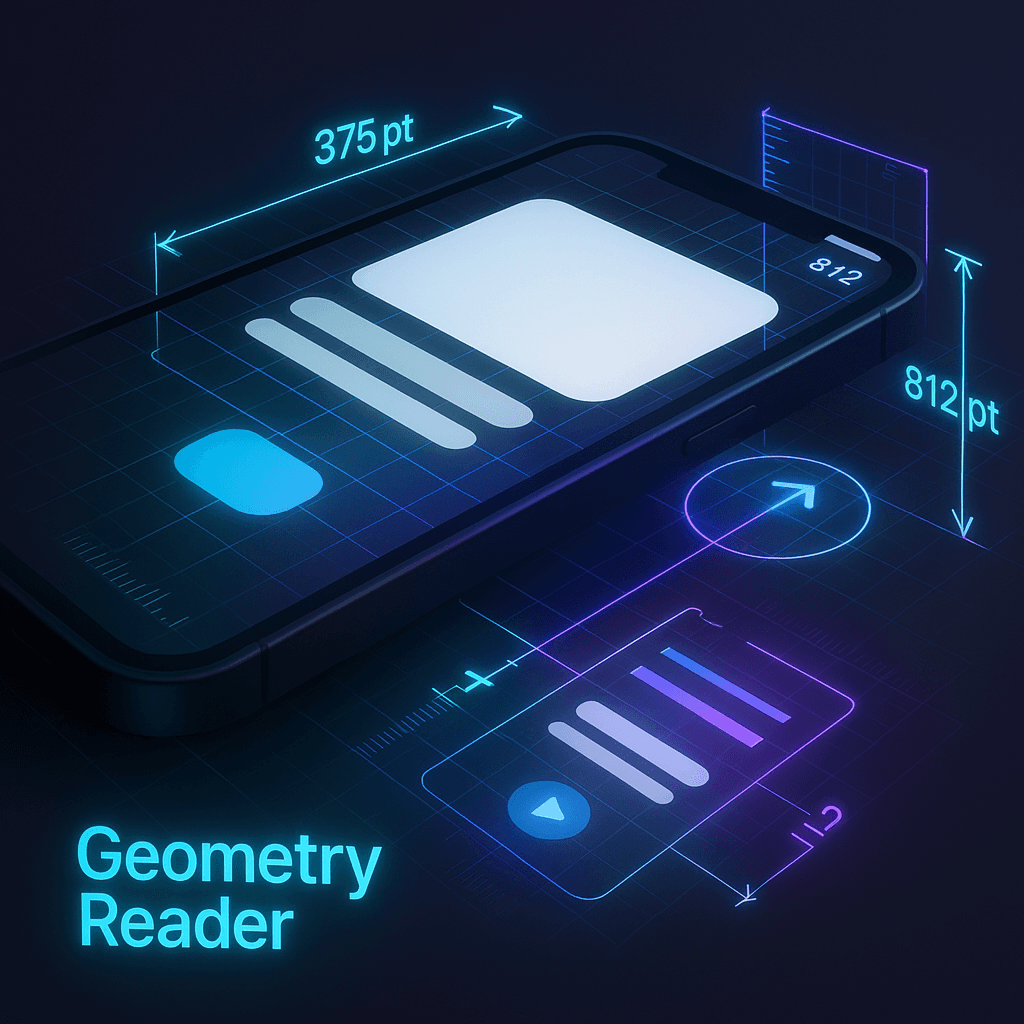
GeometryReader is SwiftUI’s way of letting you read a view’s size and position. Sounds simple. It’s not.
Basic usage:
GeometryReader { geometry in
    Text("Width: \(geometry.size.width)")
}
The closure gives you a GeometryProxy with info about the container's size and position. You can read geometry.size.width, geometry.size.height, and coordinate space details.
But here’s the first gotcha — GeometryReader expands to fill available space:
VStack {
    Text("Above")
    GeometryReader { geo in
        Text("Inside")
    }
    Text("Below")
}
The GeometryReader takes up all remaining vertical space in the VStack. “Below” text gets pushed to the bottom. This surprises everyone the first time.
It acts like a Spacer() but gives you size information. If you just wanted to read a view's size without affecting layout, tough luck - GeometryReader changes the layout by existing.
Why does it expand? Because GeometryReader proposes the maximum available space to its parent, then tells you what that space is. It’s designed to fill its container so you can make decisions based on available room.
Second weird behavior — the content inside starts at (0, 0) by default:
GeometryReader { geo in
    Circle()
        .fill(.blue)
        .frame(width: 100, height: 100)
}
The circle appears in the top-left corner, not centered. You have to manually position content:
GeometryReader { geo in
    Circle()
        .fill(.blue)
        .frame(width: 100, height: 100)
        .position(x: geo.size.width / 2, y: geo.size.height / 2)
}
Now it’s centered. .position() uses absolute coordinates within the GeometryReader.
Real example — a progress bar that adapts to container width:
GeometryReader { geo in
    ZStack(alignment: .leading) {
        Rectangle()
            .fill(Color.gray.opacity(0.3))
            .frame(height: 8)

        Rectangle()
            .fill(Color.blue)
            .frame(width: geo.size.width * progress, height: 8)
    }
    .cornerRadius(4)
}
.frame(height: 8)
Progress bar width scales with available space. The .frame(height: 8) keeps it from expanding vertically.
📱 Reading Frame Sizes and Coordinates
GeometryReader gives you more than just size — you can read positions in different coordinate spaces.
Size is straightforward:
GeometryReader { geo in
    VStack {
        Text("Width: \(Int(geo.size.width))")
        Text("Height: \(Int(geo.size.height))")
    }
}
geo.size is the size of the GeometryReader's container.
Coordinate frames get complex:
GeometryReader { geo in
    let globalFrame = geo.frame(in: .global)
    let localFrame = geo.frame(in: .local)

    VStack {
        Text("Global Y: \(Int(globalFrame.minY))")
        Text("Local Y: \(Int(localFrame.minY))")
    }
}
.global gives you coordinates relative to the screen. .local gives you coordinates relative to the GeometryReader itself (usually 0, 0).
You can also read coordinates relative to named coordinate spaces:
ScrollView {
    GeometryReader { geo in
        let frame = geo.frame(in: .named("scroll"))
        Text("Offset: \(Int(frame.minY))")
    }
    .frame(height: 100)
}
.coordinateSpace(name: "scroll")
As you scroll, frame.minY changes relative to the ScrollView. Useful for parallax effects or detecting scroll position.
Practical example — fade out a header as it scrolls off screen:
ScrollView {
    VStack(spacing: 0) {
        GeometryReader { geo in
            let offset = geo.frame(in: .named("scroll")).minY
            let opacity = max(0, min(1, offset / 100))

            Text("Header")
                .font(.largeTitle)
                .frame(maxWidth: .infinity)
                .padding()
                .opacity(opacity)
        }
        .frame(height: 100)

        ForEach(0..<50) { i in
            Text("Row \(i)")
                .padding()
        }
    }
}
.coordinateSpace(name: "scroll")
Header fades in as you pull down. The offset calculation determines opacity based on scroll position.
Safe area insets:
GeometryReader { geo in
    VStack {
        Text("Top: \(Int(geo.safeAreaInsets.top))")
        Text("Bottom: \(Int(geo.safeAreaInsets.bottom))")
    }
}
Tells you how much space the safe area takes up. Useful for custom layouts that need to avoid notches or home indicators.
Another pattern — reading a specific view’s size without GeometryReader affecting layout:
@State private var textSize: CGSize = .zero

var body: some View {
    Text("Measure me")
        .background(
            GeometryReader { geo in
                Color.clear
                    .onAppear {
                        textSize = geo.size
                    }
            }
        )
}
GeometryReader in the background doesn’t affect the Text’s layout. It just reads the size. The Color.clear trick makes it invisible.
🎨 Building Responsive Layouts with GeometryReader
GeometryReader shines when you need layouts that adapt to available space.
Proportional sizing:
GeometryReader { geo in
    HStack(spacing: 0) {
        Rectangle()
            .fill(.blue)
            .frame(width: geo.size.width * 0.3)

        Rectangle()
            .fill(.green)
            .frame(width: geo.size.width * 0.7)
    }
}
.frame(height: 200)
30/70 split that scales with container width. No hardcoded pixel values.
Adaptive columns:
GeometryReader { geo in
    let columns = Int(geo.size.width / 150)
    let columnWidth = geo.size.width / CGFloat(columns)

    LazyVGrid(columns: Array(repeating: GridItem(.fixed(columnWidth)), count: columns)) {
        ForEach(0..<20) { i in
            Rectangle()
                .fill(.blue)
                .frame(height: 100)
        }
    }
}
Number of columns depends on available width. Narrow screen = fewer columns, wide screen = more columns.
Aspect ratio containers:
GeometryReader { geo in
    let size = min(geo.size.width, geo.size.height)

    Circle()
        .fill(.purple)
        .frame(width: size, height: size)
        .position(x: geo.size.width / 2, y: geo.size.height / 2)
}
Circle sizes to fit the smaller dimension, stays centered. Works in any container size.
Responsive card layout:
GeometryReader { geo in
    let isCompact = geo.size.width < 600

    if isCompact {
        VStack(alignment: .leading, spacing: 16) {
            cardImage(width: geo.size.width)
            cardContent
        }
    } else {
        HStack(spacing: 16) {
            cardImage(width: geo.size.width * 0.4)
            cardContent
        }
    }
}

func cardImage(width: CGFloat) -> some View {
    Rectangle()
        .fill(.blue)
        .frame(width: width, height: 200)
}

var cardContent: some View {
    VStack(alignment: .leading) {
        Text("Title")
            .font(.headline)
        Text("Description goes here")
            .font(.subheadline)
    }
}
Vertical layout on narrow screens, horizontal on wide screens. Switches at 600pt threshold.
Dynamic font sizing:
GeometryReader { geo in
    Text("Responsive")
        .font(.system(size: geo.size.width / 10))
        .frame(maxWidth: .infinity, maxHeight: .infinity)
}
Font size scales with container width. Bigger container = bigger text.
Another useful pattern — proportional spacing:
GeometryReader { geo in
    VStack(spacing: geo.size.height * 0.05) {
        ForEach(0..<5) { i in
            Rectangle()
                .fill(.blue)
                .frame(height: 50)
        }
    }
}
Spacing between items is 5% of container height. Adapts to screen size.
⚠️ Common Mistakes That Break Your UI
GeometryReader has pitfalls that catch everyone.
Mistake 1: Using it in Lists or ScrollViews carelessly
// breaks layout
List {
    ForEach(items) { item in
        GeometryReader { geo in
            Text(item.name)
        }
    }
}
Each row expands to fill available space. Your list looks broken. If you need GeometryReader in a list row, constrain its height:
List {
    ForEach(items) { item in
        GeometryReader { geo in
            Text(item.name)
        }
        .frame(height: 44)
    }
}
Or put it in the background:
List {
    ForEach(items) { item in
        Text(item.name)
            .background(
                GeometryReader { geo in
                    Color.clear.onAppear {
                        // read geo.size here
                    }
                }
            )
    }
}
Mistake 2: Nesting GeometryReaders unnecessarily
// probably wrong
GeometryReader { outer in
    GeometryReader { inner in
        Text("Over-engineered")
    }
}
Each layer expands. You rarely need nested GeometryReaders. One is usually enough.
Mistake 3: Not constraining size when you should
VStack {
    Text("Top")
    GeometryReader { geo in
        Circle()
            .fill(.blue)
            .frame(width: 100, height: 100)
    }
    Text("Bottom")
}
GeometryReader takes all available space, pushing “Bottom” way down. Fix:
Now it only takes 100pt vertically.
Mistake 4: Reading size in onAppear and assuming it won’t change
@State private var viewSize: CGSize = .zero

GeometryReader { geo in
    Color.blue
        .onAppear {
            viewSize = geo.size
        }
}
onAppear fires once. If the view rotates or window resizes, viewSize is stale. Better:
GeometryReader { geo in
    Color.blue
        .onChange(of: geo.size) { newSize in
            viewSize = newSize
        }
}
Or just use geo.size directly in the view instead of storing it.
Mistake 5: Using GeometryReader when you don’t need it
// unnecessary
GeometryReader { geo in
    Text("Hello")
        .frame(width: geo.size.width)
}

// just use this
Text("Hello")
    .frame(maxWidth: .infinity)
SwiftUI has built-in ways to make views expand. GeometryReader adds complexity you don’t need.
🔧 When NOT to Use GeometryReader (Alternatives)
GeometryReader is powerful but overused. Here are alternatives for common cases.
Want full width? Use **.frame(maxWidth:)**:
// don't do this
GeometryReader { geo in
    Text("Full width")
        .frame(width: geo.size.width)
}

// do this
Text("Full width")
    .frame(maxWidth: .infinity)
Simpler, no layout side effects.
Want proportional sizes? Use **.aspectRatio()** or **.scaledToFit()**:
// don't do this
GeometryReader { geo in
    Image("photo")
        .frame(width: geo.size.width, height: geo.size.width * 0.75)
}

// do this
Image("photo")
    .aspectRatio(4/3, contentMode: .fit)
Image scales correctly without GeometryReader.
Want to read a view’s size? Use **.background()** trick:
@State private var size: CGSize = .zero

Text("Measure me")
    .background(
        GeometryReader { geo in
            Color.clear.preference(key: SizePreferenceKey.self, value: geo.size)
        }
    )
    .onPreferenceChange(SizePreferenceKey.self) { size = $0 }

struct SizePreferenceKey: PreferenceKey {
    static var defaultValue: CGSize = .zero
    static func reduce(value: inout CGSize, nextValue: () -> CGSize) {
        value = nextValue()
    }
}
Reads size without affecting layout. More code but cleaner result.
Want adaptive layouts? Use size classes:
@Environment(\.horizontalSizeClass) var sizeClass

var body: some View {
    if sizeClass == .compact {
        VStack { content }
    } else {
        HStack { content }
    }
}
Size classes tell you if you’re on a small or large device without measuring pixels.
Want grid columns? Use **.adaptive**:
// don't do this
GeometryReader { geo in
    let columns = Int(geo.size.width / 100)
    LazyVGrid(columns: Array(repeating: GridItem(.fixed(100)), count: columns)) {
        // items
    }
}

// do this
LazyVGrid(columns: [GridItem(.adaptive(minimum: 100))]) {
    // items
}
SwiftUI calculates how many columns fit automatically.
Real decision tree:
- Need actual pixel dimensions for calculations? → Use GeometryReader
- Need proportional sizing without calculations? → Use
.frame(maxWidth:)or.aspectRatio() - Need to detect compact vs regular layout? → Use size classes
- Need adaptive grid columns? → Use
GridItem(.adaptive()) - Need to position views with absolute coordinates? → Use GeometryReader (rare)
GeometryReader is for when you need numbers to do math. If SwiftUI has a declarative way to achieve your layout, use that instead.
📺 Want to see GeometryReader in action with live examples? Check out the Swift Pal YouTube channel at https://youtube.com/@swift-pal for video tutorials on SwiftUI layout and iOS development.
GeometryReader is that tool you reach for too often at first, then hardly ever once you learn the alternatives. But when you actually need it — for parallax scrolling, custom animations, or truly dynamic layouts — nothing else does the job. The trick is knowing when you really need it versus when you’re making your life harder.
🎉 Enjoyed this article? Your support means the world to me!
💬 Drop a comment below! I love hearing about your experiences and answering questions
🎬 Subscribe on Youtube and become early subscribers of my channel: https://www.youtube.com/@swift-pal
💼 Let’s connect on LinkedIn for more professional insights: https://www.linkedin.com/in/karan-pal
Happy coding! 🚀
New articles, straight to your inbox.
No spam, no filler — just new writing on iOS, the web, and AI when it ships. Unsubscribe anytime.
Keep reading
Your CPU Has More Cores Than Your Job Can Use
Some work splits cleanly across hundreds of cores. Other work is a chain of steps where every new step has to wait for the last one to finish.
ReadYour Password Isn’t as Random as You Think
Crack-time calculators measure the size of a theoretical password space—not how people actually choose passwords or how attackers search them.
Read